DevOps Pipeline
The DevOps Pipline service allows you to connect your GitLab Account and perform CI/CD pipeline activities directly from CloudUnity. There are several other products which allow CI/CD pipeline activities which will soon be integrated into our product.
What is CI/CD?
CI/CD can be split into two parts CI (Continuous Integration) and CD (Continuous Delivery/Deployment). The CI/CD pipeline opens up endless possibilities by reducing downtime and offering an efficient solution in contrast to the traditional Development and Operations team which produced higher downtimes.
The traditional method of developing an application or service would be to assign each person to work on a specific task and upon completing the task, the whole to comes together and merges the product. This may sound like it’s an efficient process but in reality, it isn’t.
Here is why the traditional method is not very efficient. Often times, the codes may be clashing with each other and errors maybe thrown. Debugging these errors would be a tedious task.
This is where CI/CD pipeline plays an important role by automating this entire process.
What is CI?
CI or Continuous Integration helps with the merging changes to the code and while merging it also tests these codes to make sure the code works all fine and is reliable.
What is CD?
CD can be spilt into two parts Continuous Delivery and Continuous Deployment. Continuous Delivery allows you to deliver your changed code into a repository upon CI processes. Continuous Deployment on the other hand not only delivers your changed/commited code to your repository but also deploy these changes to production, where it can be accessed by the customers.
Prerequsite
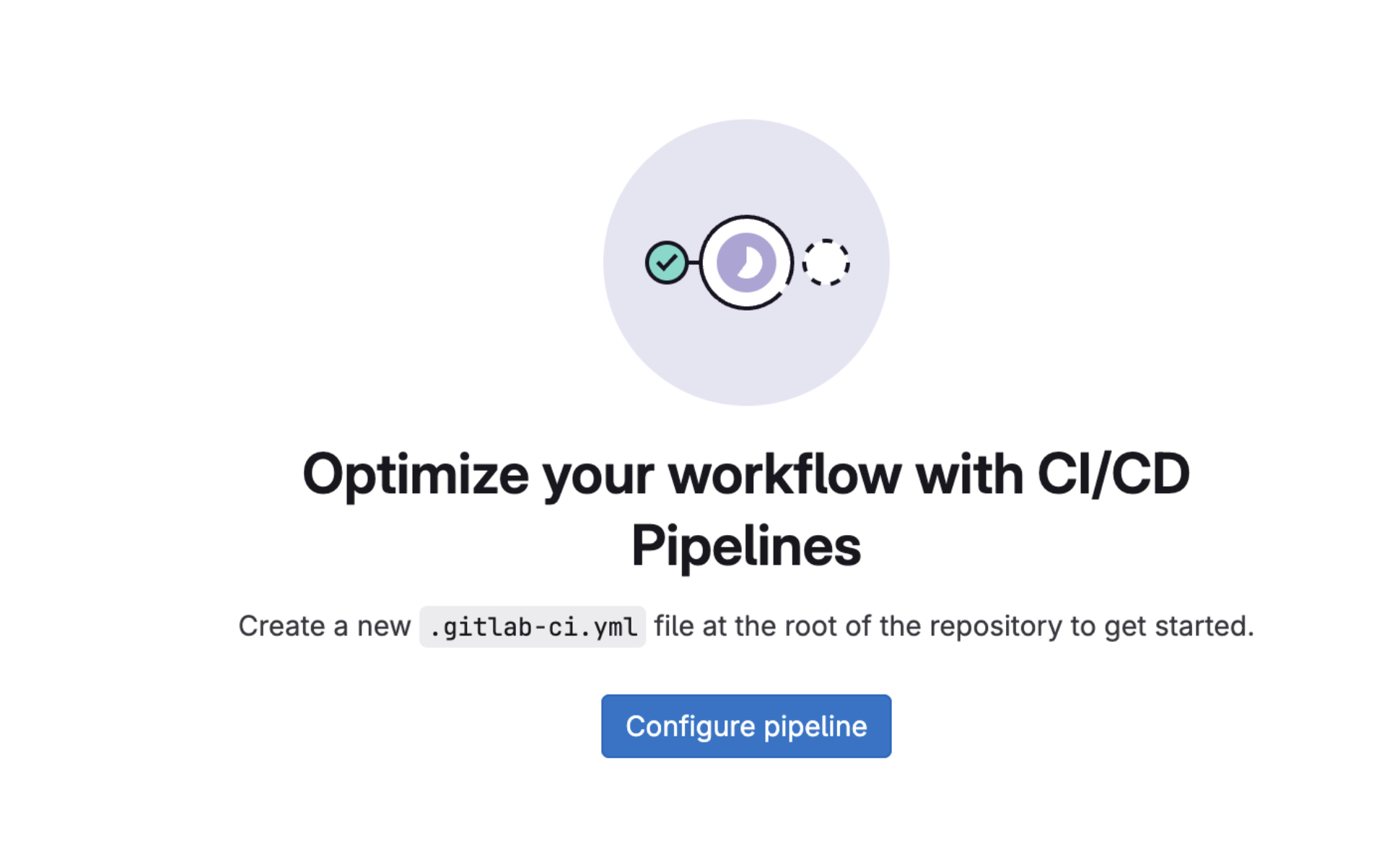
In order to access our DevOps Pipeline service you are expected to configure pipeline within GitLab by creating a ".gitlab-ci.yml" file at the root of the repository as shown in the image below.
GitLab Configuration
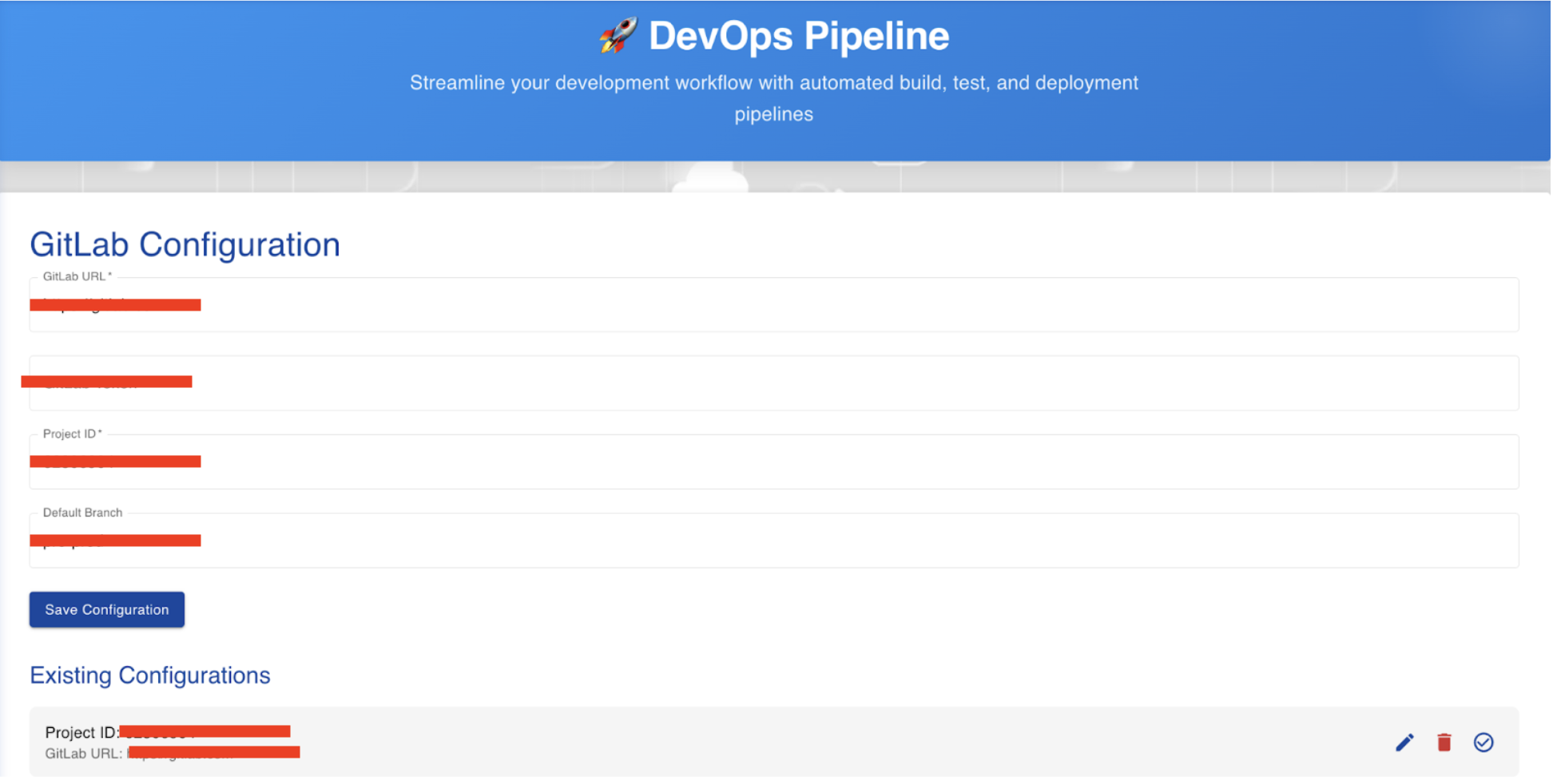
In order to perform CI/CD pipeline activities you must first configure your GitLab entering the following details
-
GitLab URL
-
GitLab Token
-
Project ID
-
Default Branch
After entering the follwing details click on "Save Configuration".
Existing Configuration
It shows the current configurations which have been added. Using the Existing Configurations you may edit, delete and check connections of these configurations. The image below depicts the GitLab Configuration and Existing Configuration.
Run Pipeline
In order to run the pipeline
-
Enter your Project ID
-
Enter your Branch
-
Click on "Run Pipeline"
This will initiate the pipeline. The processes of running a pipeline is depicted in the image below.

Current Pipeline Status
The Current Pipeline Status provides you a visual information of the status of your current pipeline in 5 categories
-
GitLab Configuration
-
Source
-
Build
-
Test
-
Deploy
The Current Pipeline Status section is depicted in the image below.

Pipeline History
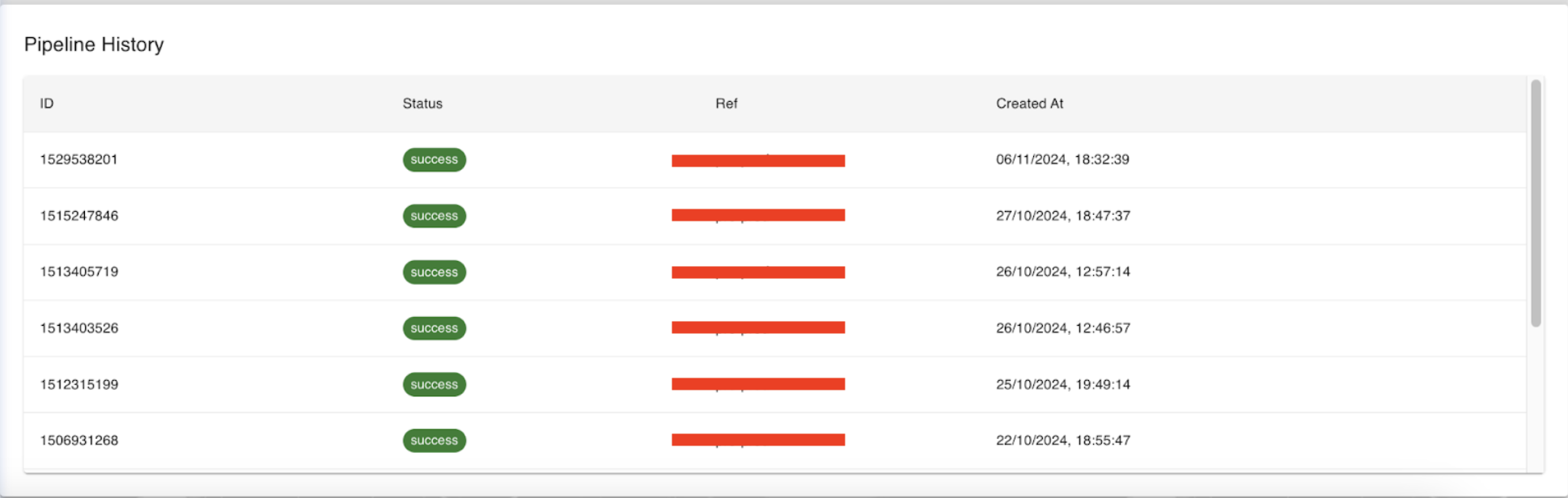
The Pipeline History dashboard allows you to see the history of all the pipelines you have run along with any currently running pipelines. The Pipeline History dashboard provides you with the following details
-
Pipeline ID
-
Pipeline Status
-
Pipeline Reference
-
The date and time of the creation of pipeline
The Pipeline History section is depicted in the image below.
Pipeline Logs
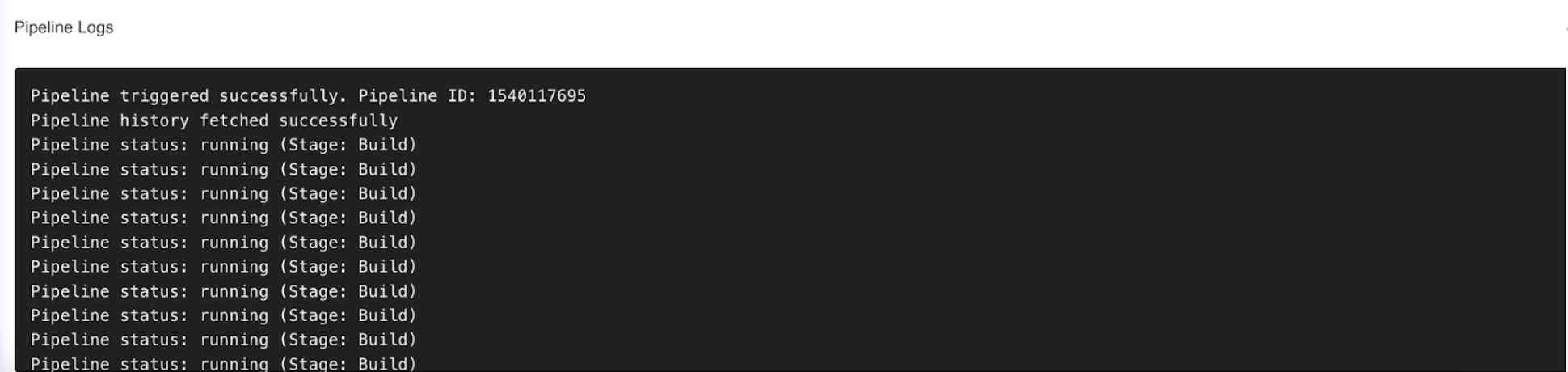
The Pipeline Logs section allows you to montior the pipeline log. A pipeline log records the events that occur during a pipeline's processing.
The Pipeline Logs section is depicted in the image below.